
How to Back Up Your Website in 2026: Complete Beginner’s Guide
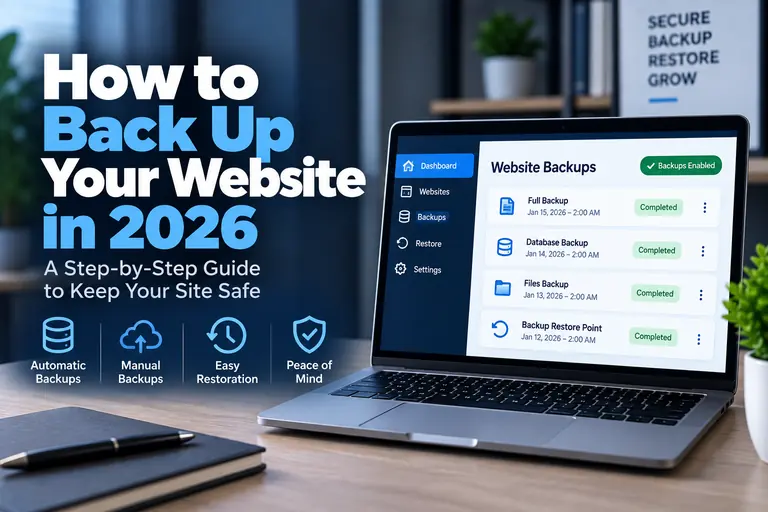
A reliable website backup can be the difference between fixing a problem in minutes and rebuilding an entire website from scratch.
Backups protect you from failed updates, accidental deletions, malware, server problems and other unexpected issues. But simply having a backup is not enough—you also need to know what is being backed up, where the backup is stored and how to restore it.
This guide explains how to back up your website in 2026, with a particular focus on WordPress websites.
Website backups are one of those things that are easy to ignore until something goes wrong.
A WordPress update can fail. A plugin can create a conflict. Files can accidentally be deleted. A website can be compromised. Even reliable hosting infrastructure can experience unexpected problems.
A good backup strategy gives you a known working copy of the website that can be restored when necessary.
For most website owners, the easiest solution is to combine automatic hosting backups with an additional backup stored separately from the hosting account.
What Is a Website Backup?
A website backup is a saved copy of the information required to restore your website.
For a typical WordPress website, that generally means two major components:
- Website files — WordPress core files, themes, plugins, uploaded images and other files.
- Database — posts, pages, settings, user information, WooCommerce data and other database content.
You normally need both components to completely restore a WordPress website.
Saving only the site's files while ignoring the database is not a complete WordPress backup.
Why Website Backups Are Important
Even a properly maintained website can encounter unexpected problems.
A backup can help recover from situations such as:
- Failed WordPress updates
- Plugin conflicts
- Theme problems
- Accidentally deleted files
- Accidentally deleted pages
- Database corruption
- Malware or hacking
- Hosting problems
- Developer mistakes
- Broken website migrations
The goal is not to prevent every possible problem. The goal is to make sure a problem does not become permanent.
1. Use Your Hosting Provider's Automatic Backups
The easiest backup method for many website owners is the backup system included with their hosting account.
Many modern WordPress hosting providers include automated backups on at least some plans, although the frequency and retention period vary considerably.
For example, Bluehost currently includes automated backups on applicable WordPress and WooCommerce hosting plans, while managed WordPress platforms commonly integrate backups directly into their hosting dashboards.
Bluehost's current WooCommerce plans, for example, include automated backup features depending on the plan level. :contentReference[oaicite:0]{index=0}
If automated maintenance and backups are important to you, compare our Best Managed WordPress Hosting 2026 recommendations.
2. Don't Rely on Only One Backup
A hosting backup is extremely useful, but your only backup ideally should not exist in the same place as your website.
If you lose access to the hosting account or encounter a serious account-level problem, having another copy stored separately provides an additional recovery option.
A stronger backup strategy might include:
- Your host's automatic backup
- A WordPress backup solution
- An off-site cloud copy
- An occasional local copy for especially important websites
You do not necessarily need four different systems. The important principle is avoiding a single point of failure.
3. Back Up Both Your Files and Database
A WordPress site consists of more than the visible pages visitors see.
Your files contain items such as:
- WordPress software
- Themes
- Plugins
- Images
- Documents
- Custom code
The database contains much of the site's actual content and configuration.
Depending on the website, this can include:
- Posts
- Pages
- Comments
- WordPress settings
- Plugin settings
- User accounts
- WooCommerce orders
- Product information
A complete backup should account for both.
4. Use Automatic Scheduled Backups
Manual backups are useful, but relying entirely on yourself to remember them is risky.
Automatic scheduled backups are usually a better foundation.
The correct frequency depends on how often your website changes.
| Website Type | Typical Backup Frequency |
|---|---|
| Small static business site | Daily or several times per week |
| Active blog | Daily |
| Membership website | Daily or more frequently |
| WooCommerce store | Daily or more frequently depending on order volume |
| High-traffic dynamic site | Potentially multiple times per day |
The more frequently your website changes, the more data you could lose between backups.
5. Create a Backup Before Major Website Changes
Scheduled backups should not stop you from creating an additional restore point before making significant changes.
Create or confirm a current backup before:
- Major WordPress updates
- Changing themes
- Installing major plugins
- Editing important code
- Changing database settings
- Migrating the website
- Making large design changes
- Updating WooCommerce functionality
If something breaks, you have a clean version from immediately before the change.
6. Store Backups Off-Site
Keeping every backup on the same server as the live website creates unnecessary risk.
Off-site storage means maintaining a backup somewhere separate from the hosting server.
That could include:
- Cloud storage
- A dedicated backup service
- Another server
- Secure local storage
Off-site storage becomes especially important for business websites where prolonged downtime could affect revenue or customer service.
7. Keep More Than One Restore Point
Keeping only the newest backup can create another problem.
Imagine malware infects a website but goes unnoticed for several days. If every older backup has already been overwritten, your newest backup might contain the same compromised files.
Keeping multiple restore points lets you go further back in time.
A backup retention strategy might keep several recent daily backups along with older weekly or monthly versions.
The exact retention schedule depends on the importance of the website and the amount of storage available.
8. Learn How to Restore the Backup
A backup is valuable only if you can restore it.
Before an emergency occurs, determine:
- Where your backups are located
- How long they are retained
- Whether you can restore them yourself
- Whether your host must perform the restoration
- Whether restoration costs extra
- Whether files and databases can be restored separately
Managed WordPress hosting can make this process easier because backups and restoration tools are often integrated directly into the hosting environment.
9. Test Important Backups
For an important business website, simply seeing a backup file in a dashboard is not always enough.
A backup can theoretically be incomplete or corrupted.
Periodically testing restoration in a staging or development environment provides greater confidence that your backup system actually works.
You do not need to restore your live website merely to test a backup. A staging environment is generally a safer place to verify restoration procedures.
10. Protect Your Backup Files
Backups can contain almost everything stored on your website.
That makes them sensitive.
A backup could potentially contain:
- User information
- Email addresses
- Website configuration
- Database credentials
- Private content
- Order information
Backup files should not be left publicly accessible on your web server.
Use secure storage and restrict access to people who actually need it.
How to Back Up a WordPress Website
There are three common approaches to WordPress backups.
Option 1: Hosting Backups
This is usually the easiest option.
Your hosting provider automatically creates backups and provides a restoration tool through the hosting dashboard.
This is particularly convenient for beginners.
Option 2: WordPress Backup Plugin
WordPress backup plugins can create scheduled copies of your files and database and may support remote storage destinations.
This can provide more control over backup schedules and storage.
Option 3: Manual Backup
Advanced users can manually download website files and export the WordPress database.
Manual backups provide direct control but require more work and are easier to forget.
For most website owners, automatic backups should remain the primary system, with manual backups used when an additional copy is appropriate.
How to Manually Back Up WordPress
If you want to create a manual backup, you generally need to save both the WordPress files and database.
Step 1: Download Your Website Files
You can typically access website files through your hosting file manager, FTP or SFTP.
Download the WordPress installation and store it securely.
Step 2: Export the Database
Many traditional hosting environments provide phpMyAdmin or another database-management tool.
Export the database associated with the WordPress installation.
Step 3: Store Both Copies Together
Clearly label the files and database export with the website and backup date.
This makes it much easier to identify the correct backup later.
If you prefer traditional hosting tools such as cPanel and phpMyAdmin, our Best cPanel Hosting 2026 guide compares several options.
How Often Should You Back Up Your Website?
The answer depends on how much information you are willing to lose.
Suppose you publish one blog article each week. A daily backup is generally more than enough to protect recent content.
A WooCommerce store receiving orders throughout the day is different. Restoring yesterday's database could potentially mean losing more recent order information.
Ask yourself:
If I had to restore my newest backup right now, how much work or data would I lose?
Your backup frequency should reflect the answer.
Website Backups for WooCommerce Stores
WooCommerce deserves additional attention because its database can change every time someone places an order, creates an account or updates information.
Store owners should pay close attention to backup frequency and understand exactly what happens when a database is restored.
Current WooCommerce-specific hosting options also increasingly include store-oriented backup, caching, security and staging features. Bluehost's current WooCommerce platform, for example, provides preconfigured WooCommerce, staging and backup functionality, while InMotion offers WooCommerce hosting ranging from shared WordPress environments through isolated VPS-based infrastructure. :contentReference[oaicite:1]{index=1}
For a busy online store, the backup strategy should reflect how frequently orders and customer information change.
Do Web Hosting Companies Back Up Your Website?
Many do, but you should never assume they all provide the same backup service.
Check:
- Whether backups are included
- How often backups occur
- How many copies are retained
- Whether backups include files and databases
- Whether restoration is automatic
- Whether restoration costs extra
This is one of the features worth comparing when selecting a host. Our How to Choose a Web Host in 2026 guide covers the other major factors you should compare.
Are Hosting Backups Enough?
For a small personal website, your hosting provider's automatic backups may provide enough protection for your comfort level.
For an important business website, relying entirely on one backup system is harder to justify.
A second copy stored independently gives you another recovery option if the primary backup becomes unavailable.
The more important the website is to your business, the stronger your backup strategy should be.
Backups vs Staging: What's the Difference?
Backups and staging environments solve different problems.
A backup is a saved version of your website that can be restored.
A staging site is a separate copy of your website used to test changes before applying them to the live site.
Ideally, an important WordPress site can benefit from both.
You can test updates in staging and still maintain backups in case something unexpected happens.
Does Better Hosting Make Backups Easier?
Often, yes.
One difference between inexpensive basic hosting and more advanced managed hosting is how much maintenance infrastructure the provider handles for you.
Backups, staging, caching, security monitoring and WordPress updates can all become easier when they are integrated into the hosting platform.
If you are deciding whether those features justify spending more, our Best WordPress Hosting 2026 guide compares our broader WordPress hosting recommendations.
Website Backup Checklist
| Backup Item | Recommended |
|---|---|
| Website files backed up | Yes |
| Database backed up | Yes |
| Automatic schedule | Yes |
| Off-site copy | Recommended |
| Multiple restore points | Recommended |
| Backup before major changes | Yes |
| Know how to restore | Essential |
| Periodic restore testing | Recommended for important sites |
Final Thoughts
The best backup system is one that runs automatically, stores complete copies of your website and gives you a clear way to restore the site when something goes wrong.
At minimum, make sure both your website files and database are protected.
For important business websites, consider maintaining a second copy separately from your hosting account and periodically verify that your restore process works.
Backups may not be the most exciting part of running a website, but when something goes wrong, they can quickly become the most valuable feature you have.